
Project management in Salesforce has never been easier
Manage Waterfall, Agile, and Task List projects — all inside your Salesforce org. No integrations. No external tools. No data silos.
Why Project Management Belongs Inside Salesforce
Salesforce project management shouldn't mean leaving Salesforce. Yet that's exactly what happens in most organizations. A deal closes, a project kicks off, and teams open Smartsheet, fire up MS Project, or update a spreadsheet.
And that's where things start to break.
Data lives in two places. Sales and delivery teams lose visibility into each other's work. Handoffs get messy. Reports become unreliable because they're pulling from disconnected systems.
It doesn't have to be this way.
When project management lives natively inside Salesforce, your data stays in one place. Your teams work from a single source of truth. Projects connect directly to accounts, opportunities, and contacts — with no integration to build or maintain.
That's what Salesforce-native project management means. Not a tool that syncs with Salesforce. Not an app that integrates via API. A project management solution that is Salesforce — built entirely on the platform, using standard Salesforce objects, security, and automation. Whether you're tracking customer onboarding projects or complex multi-phase implementations, everything stays connected.
Salesforce-Native vs. External Tools
| Capability | Native (e.g., Inspire Planner) | External (e.g., Smartsheet, MS Project, Asana) |
|---|---|---|
| Data location | Inside your Salesforce org | External data center |
| Real-time reporting | Native Salesforce reports & dashboards | Requires sync / manual export |
| Security & permissions | Inherits Salesforce profiles & permission sets | Separate security model |
| Automation | Works with Salesforce Flow, Apex triggers, and approval processes | Requires custom integration |
| User experience | Familiar Salesforce interface | Context-switching between apps |
| Task management | Uses standard Salesforce Tasks | Separate task system |
| Setup time | Install from AppExchange in minutes | Weeks of integration work |
| Ongoing maintenance | Zero sync to manage | Integration breaks when APIs change |
| Cost of integration | None — native to Salesforce | Ongoing maintenance + potential API costs |
The difference isn't just technical — it's operational. When project data lives in Salesforce, your executives can see project health alongside pipeline data on a single dashboard. Your project managers can create projects automatically when opportunities close. Your team members see their project tasks right next to their regular Salesforce tasks. No extra logins. No data discrepancy. No "let me check the other system." For a deeper comparison, see our review of the top Salesforce project management apps, or read our detailed Inspire Planner vs TaskRay comparison.
What It Looks Like in Practice
Waterfall Project Management
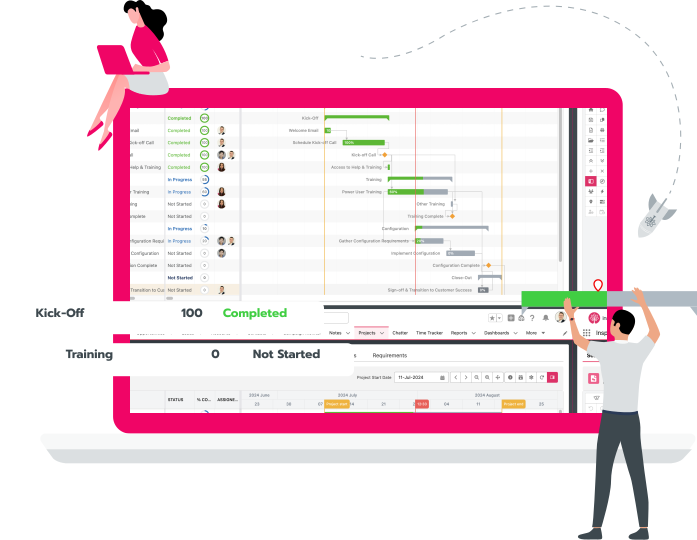
Drag-and-drop Gantt charts with predecessors (FS, SS, FF, SF), milestones, critical path, and baseline comparisons — all within Salesforce.
Agile & Scrum
Backlogs, sprint planning, story points, and Kanban boards for iterative delivery. Run sprints alongside waterfall phases.
Task Lists
Stay organized without the overhead of full project plans — works with the Salesforce Tasks your team already uses every day.
Time Tracking
Log time against any Salesforce object — projects, tasks, cases, opportunities — through daily, weekly, or stopwatch interfaces.
Resource Management
Search by skill, view capacity across projects, manage hard and soft bookings including PTO tracking.
External Project Portal
Share projects with customers, partners, and vendors. External contacts can update tasks, log effort, and comment — at no additional license cost.
Automation
Trigger project creation from opportunities via Salesforce Flow. Auto-assign tasks by role. Stitch multiple templates together based on products sold.
Portfolios & Reporting
Use native Salesforce dashboards for executive-level project and portfolio visibility. Track project health, budgets, resource allocation, risks, milestones, and effort — all from real-time dashboards inside your Salesforce org.
See It in Action
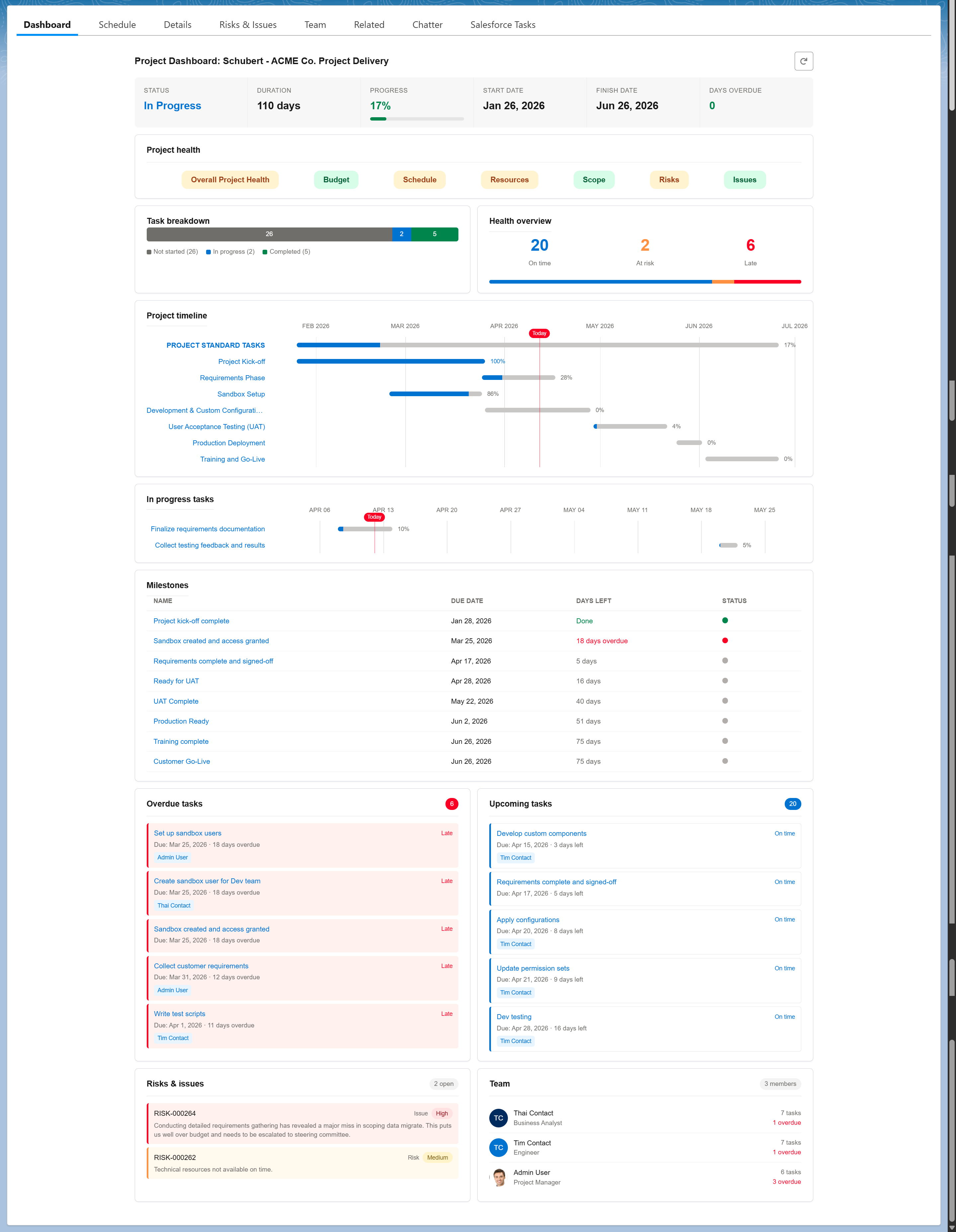
Project Dashboard
Every project gets a built-in visual dashboard showing KPI tiles, health RAG indicators, task breakdowns, timeline views, milestones, overdue tasks, risks, and team workload — all on the Salesforce record page. Configurable by admins via Lightning App Builder.
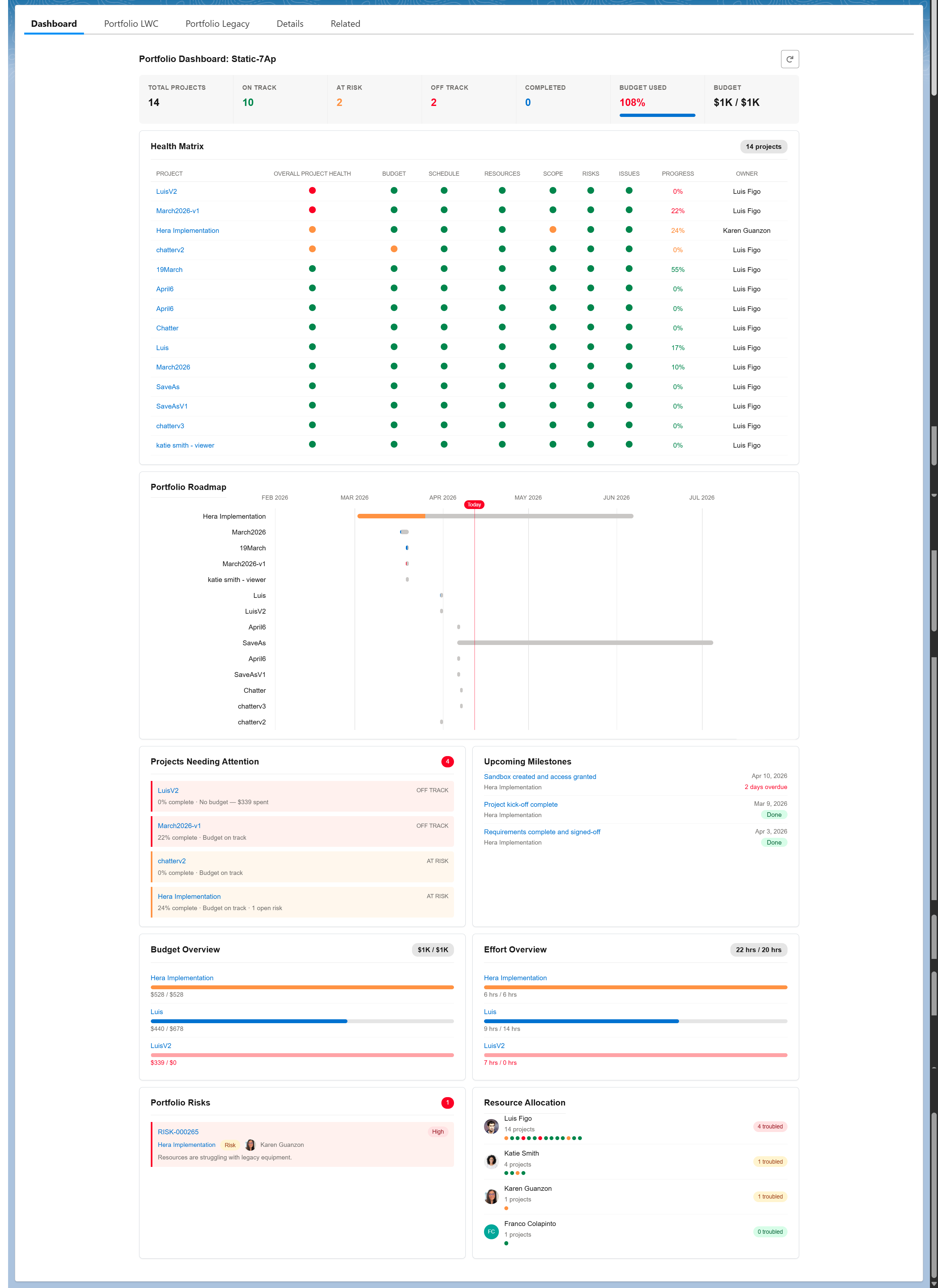
Portfolio Dashboard
Executives get portfolio-level visibility across all active projects. Track project health with a color-coded matrix, monitor budgets and effort, view the portfolio roadmap, and identify projects needing attention — all from a single Salesforce page.
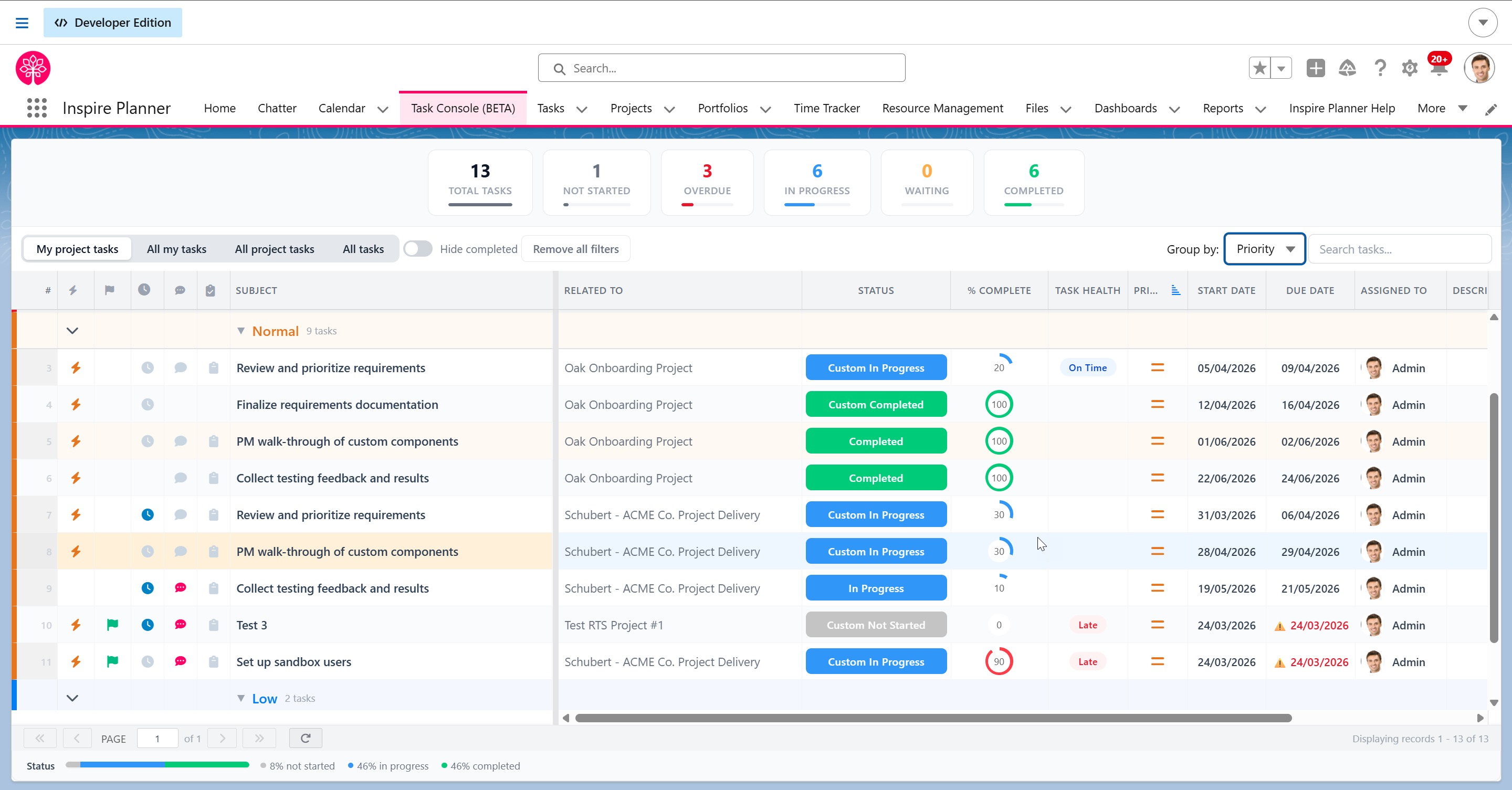
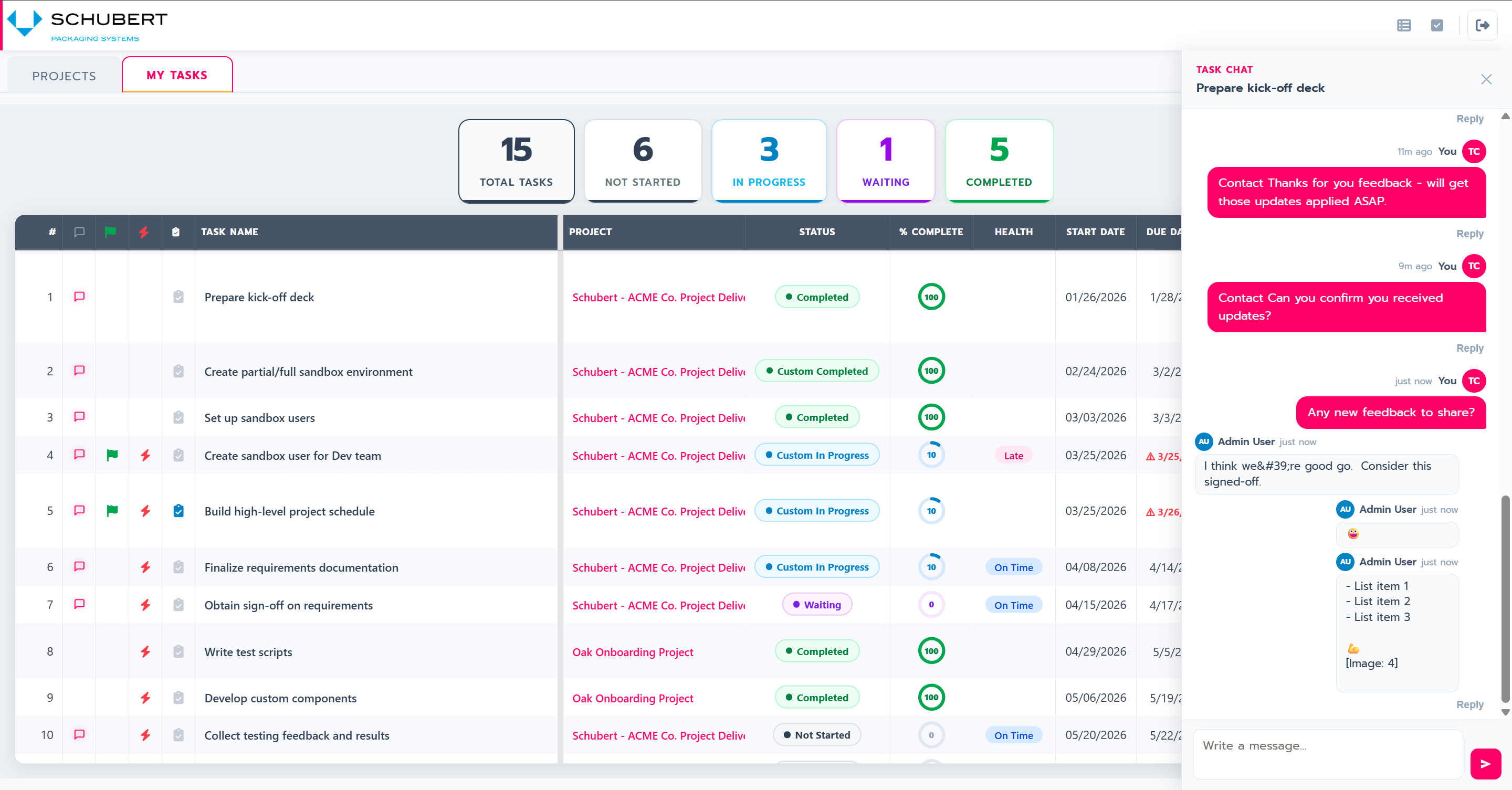
Task Console
Manage tasks across every project from a single screen. Four view modes, grouping by priority, health, status, or assignee, inline editing with automatic status sync, and time logging — without navigating into individual project records.
External Project Portal
Share projects with customers, partners, and vendors through a branded portal — at no additional license cost. External contacts can view schedules, update tasks, use checklists, and communicate with your team via task-level chat.
Get Started in Three Steps
Install from AppExchange
Installs directly into your Salesforce org. No external servers, no data migration. Your data stays in Salesforce from day one.
Configure Your Process
Set up templates, define dependencies, configure automation, assign permissions — all with standard Salesforce configuration. No code.
Start Managing Projects
Create projects from templates, assign tasks, track progress with Gantt charts, Kanban boards, or task lists. Your team's existing Salesforce environment.
Built for Teams That Run on Salesforce
Project Managers
Manage complex schedules with Gantt charts, track milestones, and monitor project health — all from within the platform where your data already lives.
Salesforce Admins
Add custom fields, update Lightning pages, configure permissions, and manage automation — using the familiar Salesforce tools you already know. No new platform to learn or maintain.
Executives & Leadership
Portfolio-level visibility across all active projects. Native dashboards show project health, resource allocation, and timelines alongside CRM data.
External Collaborators
Customers, partners, and vendors can view status, update tasks, and comment through a secure portal — no Salesforce license required.
Trusted by Teams Worldwide
“I reviewed 31 software solutions, some with cute bells and whistles, but not the substance needed. The only one that met all the needs was Inspire Planner.”— Marshall Bilodeau
“Why I'm writing such a rave: hands-down the best native Salesforce project management tool on AppExchange.”— Rajesh Beri
“Installing was easy. The UI is awesome and has nothing to be ashamed of when comparing to better-known apps. I honestly believe trying it is adopting it.”— Kevin Potter








Simple, Affordable Pricing
- Waterfall projects with Gantt charts
- Agile/Scrum with Kanban boards
- Task List projects
- Unlimited templates
- Standard Salesforce automation
- Everything in Core, plus:
- Time Tracking
- Resource Management
- External Project Portal
- Portfolio Management
- Risk Register
Frequently Asked Questions
What does Salesforce-native project management mean?
Salesforce-native means the application is built entirely on the Salesforce platform using standard Salesforce objects, security, and infrastructure. Your project data never leaves your Salesforce org — there's no external database, no API sync, and no separate login. Inspire Planner is 100% native to Salesforce, installed directly from the AppExchange.
Can I use both Waterfall and Agile in the same tool?
Yes. Inspire Planner supports Waterfall, Agile/Scrum, and simplified Task List project types — all within a single app. You can run different methodologies on different projects, or even combine them. Many teams run sprints within a larger waterfall timeline.
Do external contacts need a Salesforce license to use the project portal?
No. The External Project Portal allows customers, partners, and vendors to view project status, update tasks, log time, and leave comments through a secure web portal — without a Salesforce license and at no additional license cost.
How does Inspire Planner integrate with Salesforce automation?
Because Inspire Planner is native to Salesforce, it works with all standard platform automation: Salesforce Flow, Apex triggers, and workflow rules. Common automations include creating projects automatically when opportunities close, auto-assigning tasks by role, and sending notifications when milestones are reached.
How long does it take to set up Inspire Planner?
Inspire Planner installs from the AppExchange in minutes. Most teams are managing their first project within a day. Configuration — including project templates, task dependencies, and team permissions — uses standard Salesforce admin tools with no code required.
Does Inspire Planner work with Salesforce mobile?
Yes. Because Inspire Planner is built on the Salesforce platform, it works within the Salesforce mobile app. Team members can view project status, update tasks, and log time from their mobile devices.
Ready to Manage Projects Inside Salesforce?
Try Inspire Planner free for 30 days. Full access to all features. No credit card required.